File Manager
- 4.6
- Rating
- 100.00M
- Installs
- Free
- Price
 Analysis by App-foxy
If your phone’s storage feels like a messy drawer, File Manager is the kind of productivity app I would try before installing several separate tools. I used it as a practical place to find, open, move, rename, copy, and organize files, and its straightforward layout made the first few minutes less intimidating than I expected. It is free to install, suitable for Everyone, and developed by File Manager Plus, but it also offers optional in-app purchases ranging from $0.99 to $11.99 per item.
My first impression was that this is an app designed around a simple promise: help me understand what is on my device and do something useful with it quickly. That sounds basic, yet it matters when I am trying to locate a downloaded document, move photos into a folder, or clear out old files without accidentally disturbing something important. The app belongs to the productivity category, and I think that description fits better than calling it merely a storage browser.
It has built a very large audience, with a 4.7 average from around 1.7 million ratings and over 100 million installs. Those figures suggest that the familiar file-manager approach works for many people. Still, popularity is not a substitute for a good personal fit, so I paid more attention to the everyday workflow than to the headline numbers.
You May Also Like

 Blood Strike: 2.5 Anniversary
Blood Strike’s Loadouts Turn Every Drop Into a Tactical Gamble
A close look at Blood Strike’s custom loadouts: how fast access to signature weapons reshapes its battle royale rhythm, rewards preparation, and narrows the gap between fights.

 Pandora - Music & Podcasts
Pandora’s Music Is Easy to Start, but Harder to Recover
Pandora’s strength is its low-effort path from a seed to a station. Its weak spot is how much confidence it asks you to place in connection, setup, and quiet recovery.

 8 Ball Pool
 Is Built on Rivalries, Rematches, and Routine
A close look at the rivalries, rematches, shared routines, and unanswered safety questions that turn a quick pool match into a persistent mobile community.

 Samsung Music
’s Quiet Strength Is Playing What You Already Own
Its reach comes less from spectacle than from dependable access to a personal library. That simplicity is both the app’s strongest retention engine and its ceiling.

 AccuWeather: Weather Radar
AccuWeather Review: A Quick, Clear Forecast for Everyday Decisions
For everyday plans, the best forecast is the one you can understand quickly. AccuWeather makes rain timing, radar, and local conditions easy to act on, with a few trade-offs.

 Hill Climb Racing
Why Hill Climb Racing Still Turns Crashes Into One More Run
A tiny car, a bumpy hill and one more upgrade: Hill Climb Racing keeps resurfacing because its simple chaos makes every near-miss feel personal.
More From Our News Desk
View All News


Getting from installation to a useful first result
I’d begin with one low-stakes file rather than trying to reorganize the phone all at once. Finding it, copying it to a clearly named folder, and checking that the copy opens gives me a useful first result while leaving the original untouched. Once that feels comfortable, I can decide whether a broader folder system would genuinely make my files easier to find.
What the first screen is really for
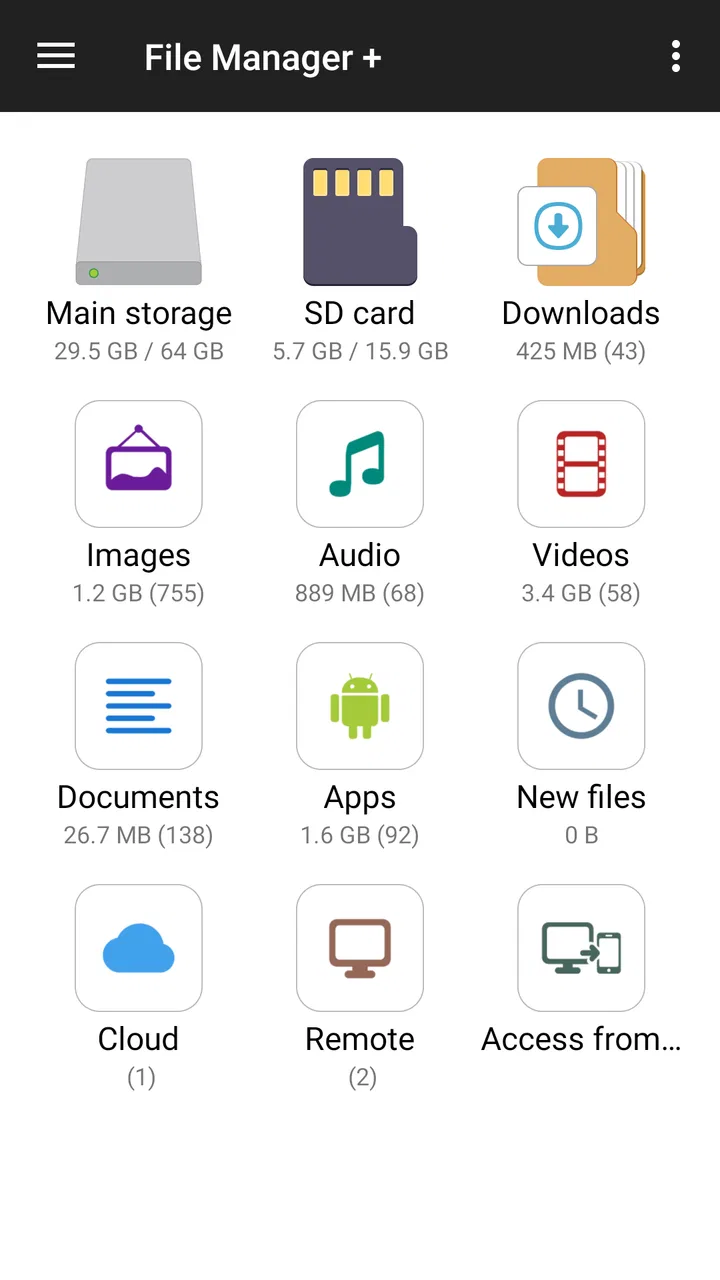
When I open a file manager for the first time, I do not want to study a complicated dashboard. I want to answer one question: where is the file I need? File Manager is most useful when I treat its opening view as a map rather than a collection of buttons. I start by looking for the broad location that matches my task, such as internal storage, a download area, an image folder, or a connected cloud location.
The app’s cloud integration is important because many people no longer keep every document locally. I often switch between files saved on the phone and files stored elsewhere, especially when I am working from a tablet or moving material between devices. Having local and cloud content available through the same file-management habit can reduce the need to jump between a storage provider’s app and the phone’s built-in file browser.
That convenience does not mean every location behaves identically. A local folder usually feels immediate, while a cloud location depends on access to the service and may involve a different response time. I recommend starting with a small file rather than a large batch when connecting your usual cloud storage. That gives you a quick way to confirm that browsing and opening work as expected before you reorganize anything important.
Setting up a safe working habit
I would not begin by cleaning the entire phone. First, I would open a folder I recognize and inspect a few items. This simple check helps me learn how the app displays names, file types, folders, and available actions without creating unnecessary risk. If I am unsure about an item, I leave it where it is until I know whether another app depends on it.
My preferred first setup is to create a small mental rule: permanent material goes into a clearly named folder, temporary downloads stay separate, and anything I may need later gets copied before it is moved. This is more valuable than trying to make every folder perfectly organized in one sitting. File Manager gives me the tools to carry out that system, but it does not decide my personal filing logic for me.
A useful beginner workflow is to choose one category, such as work documents or travel images, and organize only that category. I can select an item, use the available file action, and check the destination immediately. If the result is correct, I know the basic pattern: locate, select, choose the operation, confirm the destination, and verify. That sequence is reassuring because it turns a vague storage problem into a series of visible steps.
Your first meaningful success
The first task I recommend is finding a recently downloaded file and moving it into a folder you will recognize later. It is small enough to finish quickly but useful enough to show why a dedicated file manager exists. I would open the likely download location, identify the file by its name or type, select it, choose the move action, and place it in a folder with a clear purpose.
Afterward, I would open the destination and confirm that the file is there. This final check is easy to skip, but it teaches an important habit: do not assume a file operation succeeded just because the menu closed. Verification is especially worthwhile when working with cloud content or when the same filename appears in several folders.
Copying is the better choice when I want a backup or when I am still learning the folder structure. Moving changes the original location, while copying leaves the first version in place. That distinction is one of the most important points for a new user. If I am sorting family photos, for example, I may copy a few selected images into a project folder first. Once I am confident that the new folder is useful, I can decide whether the originals should remain where they were.
Renaming is another good first win, but I use it carefully. A clear name can make a document much easier to find, yet changing a file extension or removing part of a name can make it harder for another app to recognize. I keep the file type ending intact and change only the descriptive part of the name unless I have a specific reason to do otherwise.
A realistic everyday example
Imagine I receive a document while commuting and download it without thinking about where it will go. Later, I need it for a meeting. Instead of searching through several apps, I open File Manager, go to the download area, identify the document, and move or copy it into a folder for that meeting. I can then open it from its new location and know where to look when the meeting starts.
That scenario shows the app’s strongest quality: it gives me a direct relationship with the files themselves. I am not relying only on an app’s recent-items list, notification history, or a search box that may show incomplete results. I can inspect the folder structure and make a deliberate choice about where the document belongs.
The same approach works for photos, audio files, exported videos, and items shared between apps. I would not use it to replace every specialized application, but I do find it useful as the place where I make the final decision about storage. When a file has become difficult to locate, seeing its actual folder is often more helpful than opening the app that originally created it.
Common confusion around file locations
The biggest beginner mistake is assuming that a file is gone because it is not visible in the first folder opened. Phones can contain several similarly named locations, and an item may have been saved locally, placed in a download directory, or kept in a cloud service. I slow down and check the likely locations instead of immediately downloading a second copy.
Another source of confusion is the difference between viewing a file and managing it. Opening a document in another app does not necessarily move it, rename it, or make a new permanent copy in the folder I expect. If I need control over the location, I return to File Manager and perform the file operation there. This separation between “open” and “organize” prevents a lot of duplicate files.
Cloud storage can create a similar misunderstanding. A file that appears in a cloud folder is not automatically the same as a local file stored on the phone. I check the location shown in the app before deleting or moving anything. If my goal is to free local space, I want to be certain I am acting on the local copy rather than merely changing the organization of the cloud version.
File names also deserve more attention than they usually receive. Camera and download names can be difficult to recognize, while a descriptive name makes future searches much faster. I use names that include the subject and, when useful, a month or project label. I avoid creating a maze of nearly identical folders, because a simple structure is easier to maintain than an elaborate one I will forget.
Where this app feels stronger than usual alternatives
The built-in file browser on a phone may be enough for occasional browsing, but I find a dedicated app more helpful when I regularly move material between folders or storage locations. File Manager puts those actions at the center of the experience instead of treating them as something hidden behind a system menu.
Cloud-provider apps are excellent for files belonging to one service, but they are not always the most convenient place to compare local content with cloud content. This app’s cloud integration makes that broader view more natural. I can use a provider’s own app when I need its specialized sharing or collaboration tools, then return here for the physical organization of files.
A photo gallery is also better for browsing memories visually. I would not replace it with a file manager when I want albums, editing, or a timeline. File Manager becomes preferable when I need to see the actual file location, change names, move selected images, or handle items that do not appear neatly in a gallery.
There is a trade-off, though. A file manager exposes more of the underlying structure, which means I have more control but also more responsibility. Someone who wants everything automatically categorized may prefer a gallery, cloud library, or document app. Someone who wants to decide exactly where files live will probably appreciate this approach more.
Three habits that make it more useful
First, I use copying as a temporary safety net when reorganizing unfamiliar folders. It takes more storage, but it lets me test a new structure without immediately removing the original. Once I have checked the result, I can delete the redundant version deliberately rather than trying to recover from a mistaken move.
Second, I organize by future retrieval rather than by the app that created the file. A document belongs in a project or subject folder even if it arrived through a browser, messaging app, or email tool. This keeps my storage useful after I stop remembering which app produced the file.
Third, I treat cloud integration as part of a two-location workflow. Before a trip or a meeting, I check whether the item I need is in the location I expect and open a small sample. This avoids discovering at the worst moment that I was looking at a cloud item while expecting a local copy, or that I had organized a different version of the document.
These habits are not flashy features, but they are where I get the most value. The app becomes less about tidying for its own sake and more about making future access predictable.
Limitations I noticed in daily use
The main limitation is that a file manager can feel more technical than a specialized app. Folder names, storage locations, and file extensions are useful information, but they can overwhelm someone who only wants to open a document. The interface is approachable, yet the responsibility for choosing the right action remains with me.
There is also a risk of over-organizing. Because moving and renaming are easy to reach, I can spend time rearranging files without solving a real problem. I get better results when I begin with a concrete goal, such as finding a document for tomorrow or separating completed material from downloads. Without that goal, the app can turn into a storage-cleaning project that never quite ends.
People who need advanced automation, highly specialized media management, or a tightly controlled business document system may prefer a tool built specifically for that purpose. I would also choose a dedicated cloud app when sharing permissions, collaborative editing, or service-specific history matters more than folder control. File Manager is a practical organizer, not a replacement for every storage ecosystem.
The optional purchases are another point to consider. The app is free to use as an entry point, while additional purchases are available individually. I would begin with the free experience and decide only after I know which parts of the workflow I actually use. That keeps the decision based on my needs rather than on buying features before I understand the app.
Who should install it, and who should skip it?
I think File Manager is a strong choice for someone who downloads many documents, moves photos between folders, uses more than one storage location, or regularly wonders where a file was saved. It is also useful for people helping a family member organize a phone, because the folder-based approach makes it possible to explain where items are rather than simply saying “look in the app.”
I would be more cautious recommending it to someone who rarely handles files directly and prefers automatic photo or document organization. That person may find a gallery or cloud library more comfortable. Likewise, if all of your work happens inside one specialized service, its own app may provide a smoother experience for sharing and collaboration.
The Everyone content rating makes it suitable for a broad audience, but suitability does not remove the need for care. I would still avoid deleting unfamiliar system-related items and would confirm a file’s location before making changes. The app makes file operations accessible; it cannot know which personal files are important to me.
My next step after the first success
Once I have successfully moved one file, I create a small structure that reflects something I actually do. For example, I might make folders for current projects, personal documents, and temporary downloads. I keep the structure shallow at first. If I need several layers to find a file, I have probably made the system harder than necessary.
Then I review one cloud location and one local location separately. I identify which files I want available everywhere and which ones are only temporary. This is where the app’s combined local and cloud workflow becomes genuinely useful: I can make a conscious choice instead of allowing every download and duplicate to accumulate unnoticed.
I also recommend setting a short recurring cleanup routine based on actual use. Rather than deleting everything old, I look for completed downloads, duplicate copies created during testing, and files whose purpose is clear. I keep anything uncertain until I can identify it. A cautious five-minute review is safer and more sustainable than a dramatic cleanup session.
After using it this way, I see File Manager as a dependable middle ground between a basic built-in browser and a collection of specialized storage apps. It gives me enough control to manage everyday files, while its cloud integration helps me work across locations. The experience is not completely effortless, because file organization always requires judgment, but the app makes that judgment visible and manageable.
The developer, File Manager Plus, has kept the product focused on a task many phones handle only partially. It was released on October 19, 2015, and its long presence alongside a large user base gives it the feel of an established utility rather than a novelty. I would recommend starting slowly, proving the move-and-verify workflow with one unimportant file, and then expanding the system only when it saves you time.
My final recommendation is simple: install it if you want to know where your files are and take responsibility for organizing them. Skip it if you want a completely automatic library with little interest in folders. For first-time users, the safest path is to locate one downloaded item, copy it before experimenting, confirm the destination, and build from there. That small success is enough to show whether this free productivity app belongs in your daily toolkit.
FAQs for File Manager
01What features does the File Manager app offer?
The File Manager app provides a comprehensive suite of features including file browsing, file categorization, cloud storage integration, and advanced search functionality. Users can also enjoy secure file encryption, easy file sharing, and robust management tools like copy, cut, paste, and delete. Its intuitive interface makes it easy to navigate through files and folders.
02Is the File Manager app compatible with all Android and iOS devices?
The File Manager app is designed to work on a wide range of Android and iOS devices. It supports versions from Android 5.0 and iOS 11.0 onwards. However, for optimal performance, it is recommended to use the app on devices with updated operating systems and sufficient storage space.
03How secure is the File Manager app in terms of privacy and data protection?
The File Manager app prioritizes user privacy and data protection with built-in encryption features. It ensures that your files are secured with end-to-end encryption. Additionally, the app does not store any personal data or files on external servers, and users can set up password protection for added security.
04Does the File Manager app support cloud storage services?
Yes, the File Manager app seamlessly integrates with popular cloud storage services such as Google Drive, Dropbox, and OneDrive. This integration allows users to easily access, manage, and sync their files across different platforms, making it convenient to keep files organized and accessible from anywhere.
05Are there any costs associated with using the File Manager app?
The File Manager app offers a free version with basic features suitable for everyday file management needs. However, there is also a premium version available, which includes advanced features like ad-free usage, enhanced encryption, and priority customer support. Users can choose to upgrade based on their specific requirements.
Pros
- Intuitive user interface for easy navigation.
- Supports a wide range of file formats.
- Integrated cloud storage options.
- Efficient search and sorting features.
- Secure file encryption for privacy.
Cons
- Ads can be intrusive during use.
- Limited features in the free version.
- Occasional crashes on older devices.
- Large app size may impact storage.
- No support for advanced file operations.

File Manager
Gallery